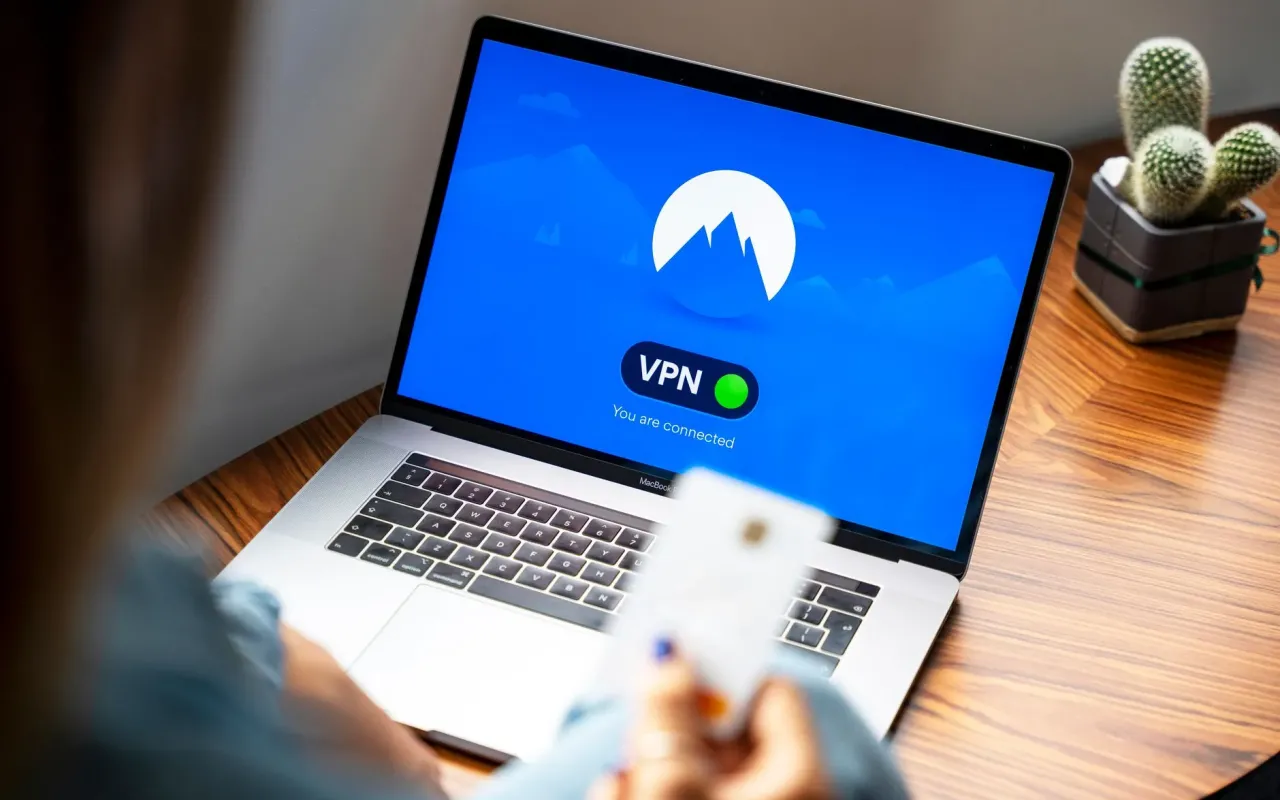
Stop protecting just one device. Learn how to set up a VPN on your router to shield every gadget in your home from prying eyes and throttling ISPs.
- July 28, 2026
AceShowbiz - Picture this: You're on your couch, streaming the latest season of your favorite show, and suddenly the buffering wheel of doom appears. You've got fast internet, so what gives? Chances are, your internet service provider (ISP) is throttling your connection because they detected streaming traffic. Now imagine if every device in your home—your smart TV, gaming console, phone, and laptop—was invisible to them. That's the power of a VPN on your router.
Most people think a VPN is just an app you click on your phone or laptop. But here's the overlooked truth: That only protects one device at a time. If you've got a smart fridge, a smart speaker, or a visitor using your Wi-Fi, they're all naked to your ISP. Setting up a VPN on your router encrypts all traffic that passes through your home network. This isn't just for tech geeks—it's for anyone who values privacy, hates buffering, or wants to access global content without hassle.
The Real Reason Your ISP Is Watching You
Your ISP knows more about you than your closest friends. They see every website you visit, every app you use, and even the times you binge-watch at 2 AM. In the US, ISPs can legally sell this data to advertisers without your consent (thanks to the 2017 repeal of FCC privacy rules). That's not a conspiracy theory—it's business as usual for companies like Comcast, Verizon, and AT&T.
But the surveillance doesn't stop there. ISPs also throttle specific types of traffic. A 2021 study by the University of Massachusetts found that major ISPs slowed down streaming video from Netflix and YouTube by up to 30% during peak hours. They do this to manage bandwidth, but it's a dirty trick that makes you think you need a more expensive plan. A router-level VPN bypasses this by encrypting your traffic so your ISP can't tell if you're streaming, gaming, or just reading emails.
Here's the actionable takeaway: If you've ever noticed your internet slowing down at 8 PM on a Friday, your ISP is likely throttling you. A VPN on your router stops that cold because your ISP only sees encrypted data, not the content type.
What You Actually Need Before You Start
Before you dive into settings and cables, you need to check if your router is compatible. Not all routers support VPNs. Older models or basic ones from your ISP often lack the processing power or firmware to handle encryption. If you're using a router provided by your ISP, it's almost certainly not VPN-ready. You'll need to buy your own—or flash your existing one with custom firmware.
Here's the short list of what you'll need:
- A VPN service that supports router configuration. Most major providers like NordVPN, ExpressVPN, or Surfshark offer setup guides for routers. Avoid free VPNs—they're slow, insecure, and often log your data.
- A compatible router. Look for models that support OpenVPN or WireGuard protocols. Brands like Asus, TP-Link, and Netgear often have built-in VPN client support. If yours doesn't, you can flash it with DD-WRT or Tomato firmware.
- Basic network knowledge. You'll need to log into your router's admin panel (usually via an IP address like 192.168.1.1) and paste some configuration files. It's not rocket science, but it's not a one-click process either.
Practical tip: If you're not comfortable with flashing firmware, buy a router that explicitly advertises "VPN client" support. Asus's RT-AX series is a solid choice—they have a dedicated VPN section in the admin panel that makes setup a breeze.
Step-by-Step: Setting Up a VPN on Your Router
Let's walk through the actual process. I'll use an Asus router with ExpressVPN as an example, but the steps are similar for most providers. Go grab your router's admin credentials and your VPN's configuration files—you'll need both.
Step 1: Access Your Router's Admin Panel
Open a browser on a device connected to your network. Type your router's IP address (common ones are 192.168.1.1 or 192.168.0.1) into the address bar. Log in with your admin username and password. If you've never changed these, check the sticker on your router—they're often "admin" and "password." Change them immediately if you haven't.
Once inside, look for a section called "VPN," "Advanced Settings," or "WAN." On Asus routers, it's under "VPN" then "VPN Client." This is where you'll tell your router to connect to a VPN server.
Step 2: Download and Upload Your VPN Configuration
Log into your VPN provider's website and download the OpenVPN configuration files. These are typically a zip file containing .ovpn files for different server locations. Choose one—for example, a server in the US if you want to watch American Netflix. Extract the file to your desktop.
Back in your router's admin panel, click "Upload" or "Import" for the config file. You'll also need to enter your VPN username and password (not your router password). This is usually found in your VPN account dashboard. Hit "Apply" or "Save." Your router will now attempt to connect to the VPN server.
Step 3: Verify the Connection
Check the status in your router's VPN menu. It should say "Connected" or show a green indicator. To double-check, visit a site like whatismyipaddress.com from a device on your network. If your IP address matches the VPN server's location, you're golden. If not, reboot the router and try again.
Actionable tip: Set up a "kill switch" if your router supports it. This feature blocks all internet traffic if the VPN drops, preventing your real IP from leaking. Not all routers have this, so if yours doesn't, consider a VPN provider with a router-level kill switch option.
What Happens When You're Done—The Good and the Annoying
Once your router is VPN-protected, every device in your home—smart TVs, game consoles, IoT gadgets—is encrypted. You'll notice your ISP can no longer throttle your streaming. That buffering issue from earlier? Gone. You'll also be able to access geo-restricted content on devices that don't support VPN apps, like your PlayStation or Apple TV.
But there's a catch: Speed. VPNs add overhead. On a fast fiber connection, you might lose 10-20% of your speed. On slower DSL, it could be more noticeable. Also, some services like banking apps or Netflix might block VPN IPs. If you can't log into your bank, you'll need to set up split tunneling—a feature that lets you route specific traffic (like banking) outside the VPN while keeping everything else encrypted.
Another annoyance: Your router's CPU. If you're using an older router, the encryption process can bog it down. You might see higher latency in online games or slower web browsing. The fix? Upgrade to a router with a faster processor, or use the WireGuard protocol if your VPN supports it—it's lighter than OpenVPN.
Practical takeaway: Don't expect perfection on day one. Test your speeds with and without the VPN using a tool like Speedtest.net. If the drop is more than 30%, switch to a closer server or try a different protocol.
When You Shouldn't Use a VPN on Your Router
I'm not going to pretend this is the right move for everyone. There are specific scenarios where a router-level VPN is a bad idea. For instance, if you work from home and your employer uses a corporate VPN, you'll have double encryption—which slows things down and can cause conflicts. In that case, keep the VPN off your router and use the company's app on your work laptop.
Also, if you're a gamer who needs low latency, a router VPN might introduce 10-20ms of extra ping. That's fine for casual gaming, but competitive players in games like Call of Duty or Valorant will feel it. Instead, use a VPN on your PC specifically for gaming if you need to bypass regional locks or DDoS protection.
And here's the big one: If you live with people who aren't tech-savvy, a router VPN can break their access to local services. For example, if you have a printer or a NAS drive on your network, devices on the VPN might not see them. You'll need to configure local network access (LAN) separately in your router settings.
Actionable tip: If you're in a shared household, set up a guest Wi-Fi network that bypasses the VPN. That way, your guests can use the internet normally, while your personal devices stay protected. Most modern routers support guest networks—just enable it in the Wi-Fi settings.
How to Maintain Your Router VPN Long-Term
Setting it up is only half the battle. Your router VPN needs occasional maintenance to keep working smoothly. First, update your router's firmware regularly. Manufacturers release patches for security vulnerabilities, and outdated firmware can expose your network even with a VPN active. Check for updates every few months in the admin panel.
Second, rotate your VPN server occasionally. If you're using the same server for months, it might get blacklisted by streaming services or become overcrowded. Switch to a less popular server in the same region for better speeds. Most VPN apps let you test server load—choose one under 60% capacity.
Third, monitor your VPN connection. Some routers have a log feature that shows disconnections. If you see frequent drops, your VPN provider might be unreliable, or your router might be overheating. Place your router in a cool, ventilated area. If problems persist, contact your VPN's support—they can give you a custom config file that's more stable.
Practical takeaway: Set a calendar reminder every three months to check your router's firmware and VPN connection status. It takes five minutes and prevents nasty surprises like a data leak during a family movie night.