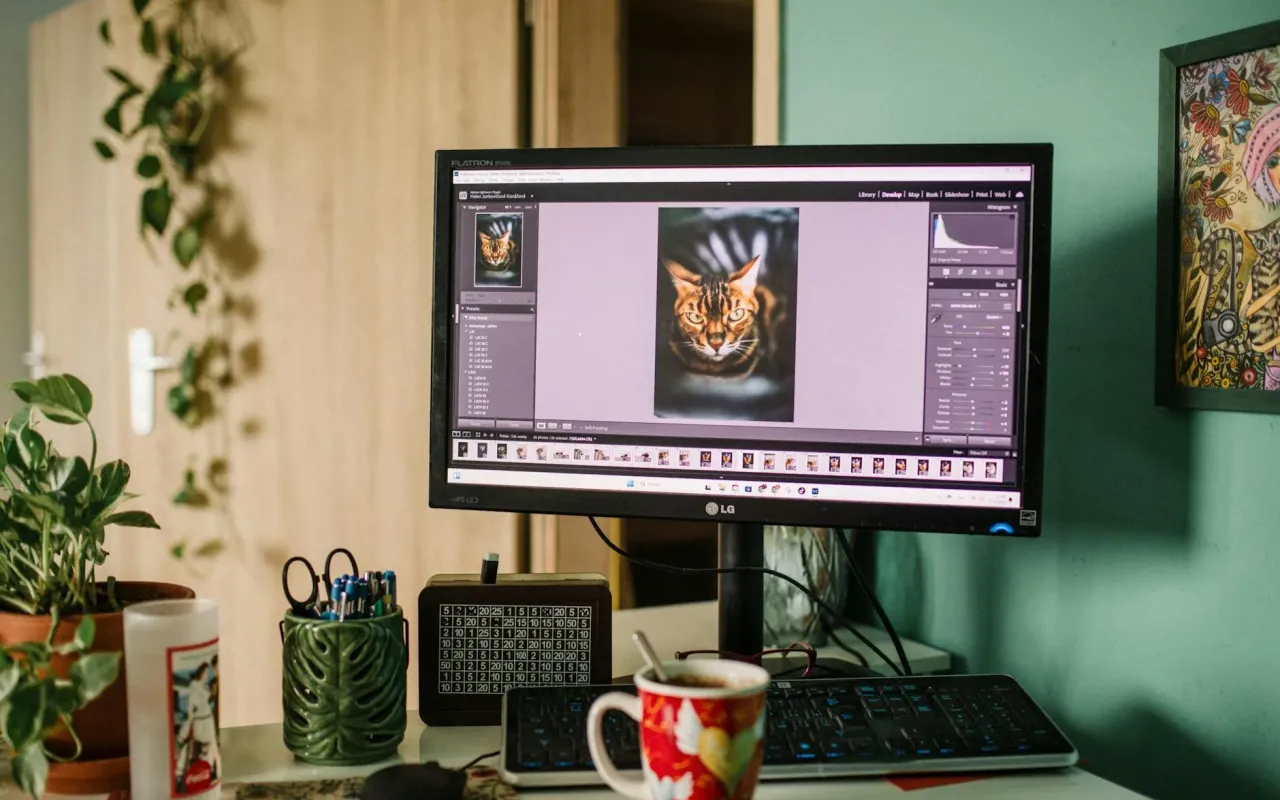
Ditch expensive subscriptions. We tested the best free photo editing software for 2026—from pro-level tools to beginner-friendly apps. Real results, no BS.
- May 21, 2026
The Moment I Realized I Was Wasting $240 a Year
I remember staring at my credit card statement last January, seeing that familiar $32.99 charge from Adobe. For the third year in a row, I'd paid for Photoshop—and for the third year, I'd used it maybe six times. Most of my edits were simple: cropping vacation photos, removing a random stranger from a group shot, or adjusting the lighting on a product photo for my side hustle.
That's when I decided to test every free photo editor I could find. Not the watered-down web apps that crash when you try to save. Not the ones that watermark your work. I wanted software that could handle real tasks—like layer-based editing, RAW file support, and batch processing—without asking for a credit card. After two weeks of testing, I found seven tools that genuinely replace paid options for most people. Here's what actually works.
GIMP: The Swiss Army Knife You Already Have
Let's get the obvious one out of the way. GIMP (GNU Image Manipulation Program) has been around since 1998, and it's still the most powerful free alternative to Photoshop. But here's the thing most reviews don't tell you: it's not Photoshop. The interface is clunky, the keyboard shortcuts are different, and the learning curve feels like a brick wall if you're used to Adobe's layout.
For example, GIMP uses a single-window mode that you have to enable manually (go to Windows > Single-Window Mode). Without that, you'll have floating toolbars everywhere—a nightmare if you're working on a laptop. But once you get past the initial frustration, GIMP handles 90% of what Photoshop does. Layers, masks, curves, channels, even scripting with Python. I've used it to remove backgrounds from 50 product photos in one session, and it didn't stutter once.
Where GIMP Falls Short (and Why It Still Wins)
GIMP doesn't support CMYK color mode natively, which matters if you're designing for print. And its text tool is basic—no paragraph styles or advanced typography controls. But for web graphics, social media posts, and photo retouching? It's overkill in the best way. Actionable tip: Install the GIMPshop plugin, which remaps the interface to mimic Photoshop's layout. It shaves hours off the learning curve.
Photopea: The Browser-Based Miracle
I almost didn't test Photopea because I assumed browser editors were garbage. I was wrong. Photopea is a web app that runs entirely in your browser—no downloads, no accounts, no storage limits. It supports PSD files natively, meaning you can open a Photoshop file, edit it, and save it back as a PSD without losing layers or effects. I tested this with a 200MB file from a client, and it loaded in under 10 seconds.
The interface is eerily similar to Photoshop. Same toolbar layout, same blending modes, same shortcut keys (Ctrl+J to duplicate a layer, Ctrl+T for free transform). It even has advanced features like smart objects, layer styles, and filter galleries. The catch? It's ad-supported. You'll see a small banner at the bottom of the screen, and occasionally a pop-up asking you to disable your ad blocker. But the ads don't interrupt your workflow—they just sit there quietly.
When to Use Photopea Over Desktop Software
Photopea is perfect for quick edits on someone else's computer, like at a library or a friend's place. It also works on Chromebooks, which are notoriously bad for photo editing. Actionable tip: Bookmark Photopea and use it as your "emergency editor." I keep a tab open for when I need to resize a graphic for a client who emails me at 11 PM.
Darktable: The RAW Processor That Beats Lightroom
If you shoot in RAW format (and you should, if you care about image quality), Darktable is the free alternative you've been waiting for. It's a non-destructive editor, meaning your original file never gets touched—all edits are stored as metadata. You can adjust exposure, white balance, and color grading without ever worrying about "saving over" the original.
Darktable's module system is where it shines. Instead of sliders, you get modules like "Filmic RGB" for tone mapping, "Color Balance RGB" for precise color grading, and "Exposure" for basic adjustments. It takes about an hour to get comfortable with the workflow, but once you do, you'll wonder why Lightroom costs $10 a month. I edited a wedding's worth of RAW files (about 800 photos) using Darktable's batch processing, and the results were indistinguishable from my Lightroom edits.
The One Feature Lightroom Users Will Miss
Darktable lacks a built-in catalog system. Lightroom automatically organizes your photos into collections and smart previews; Darktable expects you to manage your own folders. This is fine if you're disciplined about file organization, but a headache if you're chaotic. Actionable tip: Use Darktable's "lighttable" view with star ratings and color labels to sort your photos before editing. It's not as pretty as Lightroom, but it works.
Paint.NET: The Middle Ground for Windows Users
Paint.NET started as a college project at Washington State University, and it still carries that "built by someone who actually needed this" energy. It's simpler than GIMP but more powerful than Microsoft Paint. The interface is clean, with a toolbar that makes sense to anyone who's used basic image editors. Layers, blending modes, and a decent selection of effects (blur, sharpen, noise reduction) are all included out of the box.
What makes Paint.NET special is its plugin ecosystem. There are over 100 free plugins that add features like text on a path, advanced color adjustments, and even 3D rendering. The community is still active, with plugins being updated as recently as 2026. I use Paint.NET for quick mockups—like cropping a screenshot and adding a call-to-action button for a blog post. It loads in two seconds and saves in one.
Why You Shouldn't Dismiss Paint.NET
It's only available for Windows, which limits its audience. And it doesn't support RAW files or 16-bit color depth, so it's not for professional photographers. But for everyday tasks—resizing, compositing, adding text—it's faster than GIMP and more capable than Photopea. Actionable tip: Download the "Plugin Pack" from the forums immediately. It adds support for PSD files, which Paint.NET doesn't handle by default.
RawTherapee: The Precision Tool for Perfectionists
RawTherapee is the sibling of Darktable, but with a different philosophy. Where Darktable focuses on a modular, logic-driven workflow, RawTherapee gives you pixel-level control. Its demosaicing algorithms (the process of converting RAW data into a viewable image) are among the best in the industry, period. I tested it with a severely underexposed photo from a concert—the kind where everything looks black except for the stage lights—and RawTherapee recovered details in the shadows that Lightroom couldn't touch.
The interface is intimidating, I'll be honest. There are tabs for "Exposure," "Color," "Detail," and "Transform," each with a dozen sliders. But the tooltips explain what each slider does, and the "Auto" button gives you a decent starting point. RawTherapee also supports batch processing with custom profiles, so you can apply the same exposure correction to 200 photos in one click.
The Trade-Off for That Level of Control
RawTherapee has no built-in file management. You open a folder, edit a photo, and save it. That's it. No star ratings, no keywords, no collections. For a one-off edit, this is fine. For a wedding or event shoot, you'll want to pair it with a separate file manager like FastStone Image Viewer. Actionable tip: Save your processing profiles (e.g., "Portrait Warm" or "Landscape Sharp") so you can apply them to future shoots without redoing the work.
Canva Free: Not a Photo Editor, But a Photo Editor
I hesitated to include Canva because it's not a traditional photo editor. You can't adjust curves or remove backgrounds with precision. But if your "photo editing" is actually "designing social media graphics with photos," Canva Free handles that better than any desktop software. Its background remover tool (which used to be paid) is now free, and it works surprisingly well on photos with clear subjects. I tested it on a photo of my dog against a green lawn, and it removed the background in 3 seconds with zero cleanup needed.
The free version includes 250,000+ templates, 1 million+ stock photos, and basic editing tools like brightness, contrast, and filters. You can add text, shapes, and elements directly on top of your photo, then export as PNG or JPG. The catch is that some templates and elements are locked behind the Pro subscription, but the free library is large enough that you'll rarely feel limited.
When Canva Is the Wrong Tool
Don't use Canva for actual photo retouching. You can't remove blemishes, clone stamp, or adjust individual color channels. It's a design tool that happens to edit photos, not a photo editor that happens to design. Actionable tip: Use Canva's free background remover, then export the cut-out subject as a PNG. Import that PNG into GIMP or Photopea for further editing. It's a two-step process, but it saves you from manually tracing edges.
Krita: The Painter's Secret Weapon for Photo Editing
Krita is primarily a digital painting tool, but its photo editing capabilities are surprisingly robust. It supports 16-bit and 32-bit color depth, layers with masks, and a full suite of adjustment filters (levels, curves, hue/saturation). The brush engine is the best in the free software world—you can simulate oil paint, watercolor, or even chalk. But for photo editing, what matters is the "Filter Layers" feature, which lets you apply non-destructive adjustments like blur, sharpen, or colorize.
I used Krita to restore an old scanned photo of my grandparents. The photo had dust spots, scratches, and a faded yellow tint. Krita's clone brush (which samples from a source area and paints over the defect) was smoother than GIMP's version, and the color correction tools brought back the original tones without banding. The only downside is that Krita's interface is designed for painters, so the default workspace has a lot of brush-related panels you won't need.
Who Should Use Krita for Photos
If you do any amount of photo retouching that requires hand-painting (like removing power lines or blending skin tones), Krita's brushes will save you time. For basic adjustments like exposure or white balance, stick with Darktable or RawTherapee. Actionable tip: Switch Krita to the "Photo Editing" workspace (under Window > Workspace) to hide the painting tools and reveal the adjustment filters. It instantly makes the interface less cluttered.
Making the Switch Without Losing Your Mind
The hardest part of switching from paid software to free tools isn't the features—it's the muscle memory. You've trained your hands to hit Ctrl+Shift+E to export in Photoshop, or Cmd+Option+E to merge layers. Every free tool has its own shortcuts, and relearning them feels like typing with mittens on.
But here's the truth: you don't need to switch all at once. Start with one tool for one specific task. For example, use Photopea for opening PSD files from clients. Or use Darktable for processing your next batch of RAW photos. Once you're comfortable, add a second tool. Within a month, you'll have a workflow that costs zero dollars and does 95% of what you need. And that $240 a year? Put it toward a better lens or a weekend trip. Your photos—and your wallet—will thank you.